AVIF to JPG: Complete Guide to Converting AVIF Images
Downloaded a picture that won't open? Learn how to convert AVIF to JPG across Windows, Mac, phones, and online tools with optimal settings and universal compatibility.
Downloaded a picture from the web and it won’t open? You’ve probably run into an AVIF image. This modern image format saves space but causes real headaches with file compatibility. Whether you’re on a laptop, a phone, or just browsing online, this guide shows you exactly how to convert AVIF to JPG on every device, with no confusing tech talk and no wasted time.
By the end of this article, you’ll know what AVIF actually is, why it exists, and which method fits your situation best. We’ll cover online tools, Windows, Mac, phones, batch conversion, and how to check your results. Let’s get started.
What Is an AVIF Image and Why Do Websites Use It?
Next-Gen AV1 Compression: Why Modern Websites Switch to AVIF
AVIF (AV1 Image File Format) is a newer raster image format built specifically for the modern web. It uses the AV1 video codec to shrink file size dramatically while keeping strong image quality. Many websites now save their photos as AVIF because pages load faster, use less mobile data, and rank better in speed tests. For businesses running large digital media libraries, that efficiency adds up fast across thousands of images.
The AVIF Compatibility Dilemma: Legacy Browsers, Apps, and Upload Portals
The problem is software support. Not every app, printer, or browser fully supports AVIF yet, especially older systems. Some desktop converter tools and email clients still reject it outright. That’s exactly why so many people search for a free AVIF to JPG converter just to view, edit, or upload their photos normally again. Without conversion, a perfectly good photo can feel completely stuck.
| Feature | AVIF | JPG / JPEG |
|---|---|---|
| File size | Up to 50% smaller | Standard |
| Browser & OS support | Modern only | 100% Universal |
| Transparency (Alpha) | Yes | No |
| Editing & print software | Limited | Universal |
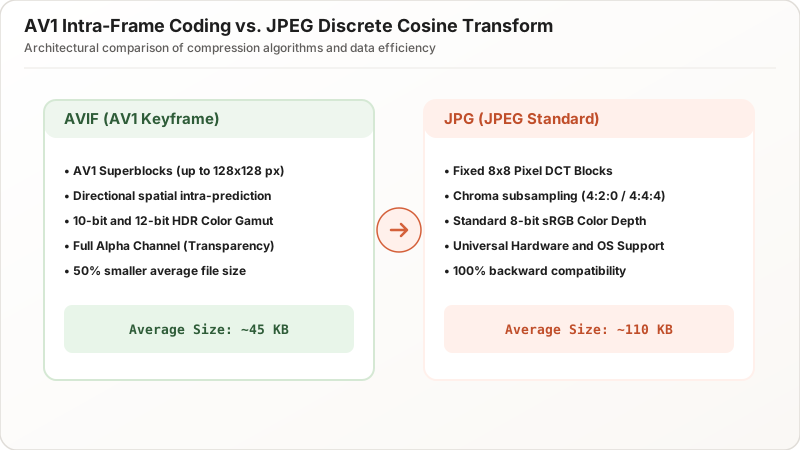
Technical Comparison: How AVIF and JPG Compress Image Data Differently
AV1 Intra-Frame Coding vs. JPEG Discrete Cosine Transform (DCT)
AVIF uses smarter lossy compression than older formats. It keeps more visual detail at a smaller file size than JPG, thanks to more advanced encoding methods borrowed from video technology. It also supports richer 10-bit/12-bit color, wider color profile ranges, higher resolution handling, and even transparency, things JPEG was simply never built to handle when it was designed decades ago.
Trading File Compression Efficiency for 100% Universal Compatibility
JPG is older but far simpler under the hood. Almost every image processing tool, printer, upload form, and website accepts it without any issue at all. That’s the whole reason AVIF to JPG conversion matters so much: you trade a little compression efficiency for total file compatibility everywhere you send the image, from print shops to government portals and legacy enterprise software.
Step-by-Step Guide: How to Convert AVIF to JPG on Any Device
1. How to Convert AVIF to JPG Online with Zero Cloud Uploads (Client-Side)
The easiest method needs no software installation:
- Open our free client-side AVIF to JPG converter in any browser.
- Drag and drop your
.aviffiles into the upload box. - Adjust the JPG Quality slider (80–90% recommended).
- Click Download to save your instant JPG files.
Privacy Note: Always choose a tool that processes files locally in your browser memory rather than uploading them to remote servers. This guarantees your images stay 100% private and makes conversion instantaneous.
2. How to Convert AVIF to JPG on Windows (Built-in Photos & Paint)
Windows users have a built-in option:
- Open the
.avifphoto in Microsoft Photos. - Click the three-dot menu (…) at the top and select Save as.
- Choose .jpg / .jpeg from the “Save as type” dropdown and hit Save.
If Photos displays an error opening AVIF files, install the free AV1 Video Extension from the Microsoft Store to enable system-wide native AVIF decoding.
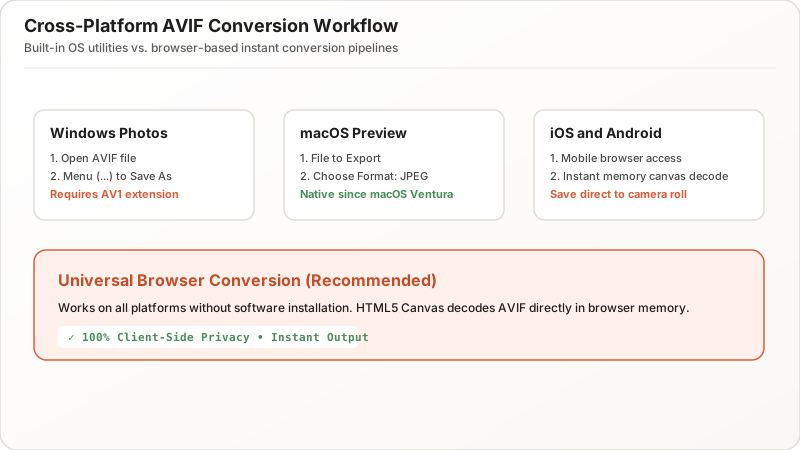
3. How to Convert AVIF to JPG on macOS (Apple Preview & Quick Actions)
Mac users (running macOS Ventura or newer) enjoy native AVIF support:
- Double-click the AVIF file to open it in Apple Preview.
- Click File > Export… from the top menu bar.
- In the Format dropdown, select JPEG.
- Adjust the Quality slider to control output file size and click Save.
4. How to Convert AVIF Images on iPhone (iOS) and Android Mobile Devices
- On iPhone / iPad: Use Safari to open a browser-based converter, upload the AVIF from your Photos app or Files, and save the converted JPG directly back to your Camera Roll.
- On Android: Open Google Chrome or use gallery apps with built-in export to convert
.avifshots to standard.jpgformat in seconds.
Optimal JPEG Quality Settings for AVIF Conversion
Balancing Visual Sharpness and Output File Size
JPG quality settings control the balance between file size and sharpness in your final image:
- A compression level of 80 to 90 works well for websites, blogs, and social media sharing without looking noticeably worse than the original photo.
- For printing or archiving, choose 95 or higher to preserve fine pixels and detail.
| Use Case | Recommended Quality | Typical File Size Outcome |
|---|---|---|
| Web & Social Media | 80–85% | Compact & sharp |
| Document Uploads & Portals | 75–80% | Meets strict KB caps |
| High-Res Photo Printing | 95–100% | Maximum fidelity |
How to Batch Convert Multiple AVIF Files to JPG Simultaneously
High-Speed Bulk Conversion for Marketers, Designers, and Photographers
Converting one file at a time gets old fast when you have dozens sitting in a folder. Batch AVIF to JPG conversion allows you to select multiple images simultaneously and convert the entire collection in parallel.
Maintaining Consistent Output Resolution and Quality Settings in Batches
A dedicated bulk converter applies consistent quality settings across every file in the queue, ensuring uniform resolution and appearance while saving hours of repetitive manual work.
Quality Assurance: How to Inspect and Verify Converted JPG Files
Checking Color Accuracy, Dynamic Range, and Compression Artifacts
Once your JPG conversion finishes, inspect the output before deleting your originals:
- Compare color balance, skin tones, and gradient transitions.
- Zoom in to check for any unwanted macroblock artifacts or edge blurring.
Understanding Normal File Size Increases in JPG Output
It is completely normal for the converted JPG to be somewhat larger in kilobytes than the source AVIF, because JPEG’s older compression algorithm requires more data bytes to store the same level of visual detail.
Summary & Workflow Checklist: Converting AVIF to JPG with Confidence
AVIF offers cutting-edge compression efficiency, but universal compatibility still belongs to JPG. Whether you use a browser-based client-side converter, Windows Photos, or Apple Preview, converting AVIF to JPG ensures your images can be viewed, shared, edited, and printed without compatibility barriers.