Why Your Compressed Image Looks Blurry or Blocky at 20KB (and How to Fix It)
Understand what causes blocky artifacts, blurriness, and color banding at 20KB compression and how to fix them effectively.
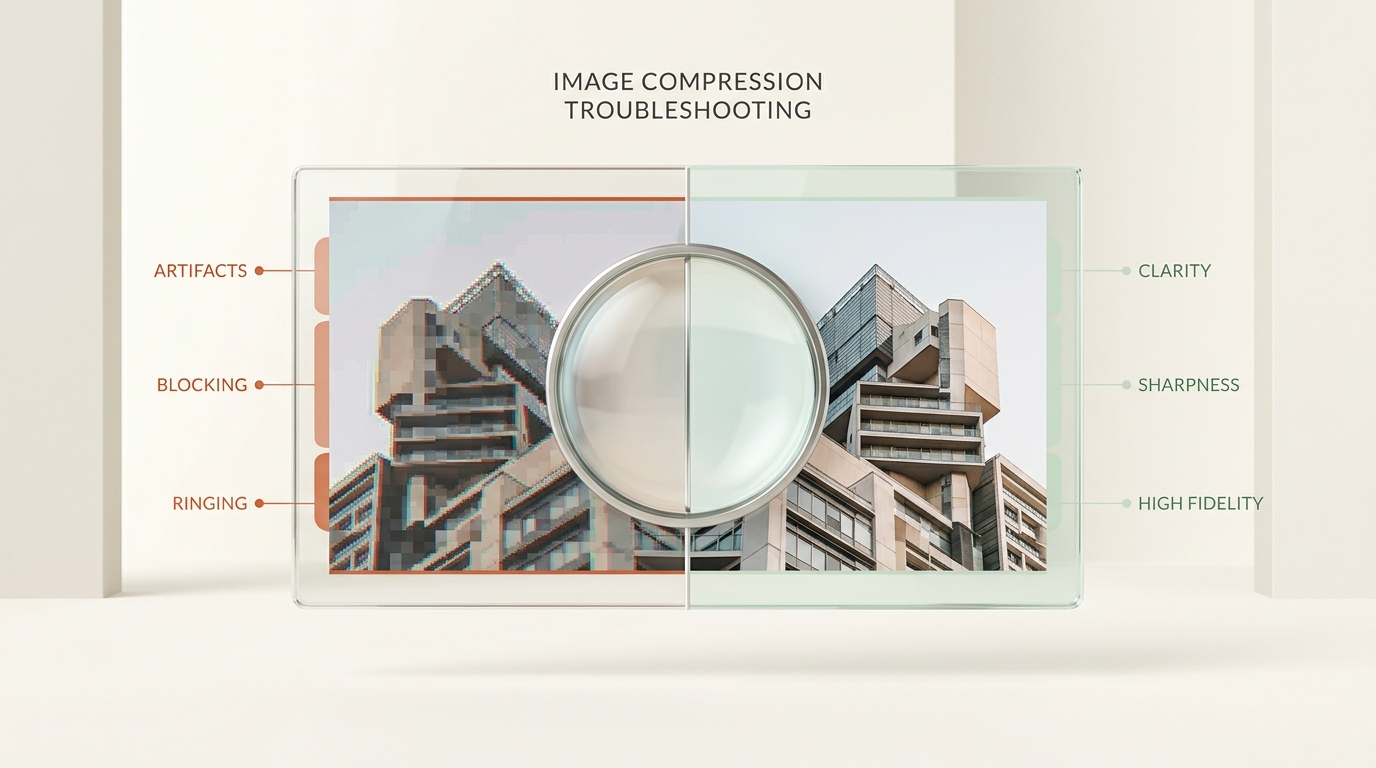
Nothing is more frustrating than finally hitting your 20KB file size target, only to discover your photo looks smudged, blurry, or covered in pixelated blocks. This degradation happens due to specific, predictable compression mechanics—not random bad luck. Understanding why image quality degrades at small byte budgets is the key to producing a crisp, professional 20KB image every time.
Why Aggressive 20KB Compression Causes Blurriness and Image Degradation
Mathematical Quantization and Information Loss in Small File Budgets
All lossy compression algorithms (like standard JPEG) work by applying mathematical quantization, which discards subtle color variations the human eye rarely notices at normal distances. At moderate compression settings (e.g., 75–85%), the visual loss is imperceptible.
However, when forced into an aggressive 20KB budget, the algorithm exhausts unnoticeable data and begins discarding critical facial contours, eye reflections, and edge definition.
Why Compression Algorithms Sacrifice High-Frequency Details First
A raw camera image contains millions of bytes of visual entropy. To compress that data down to 20,000 bytes, the codec strips out high-frequency frequencies (fine lines, skin texture, hair strands, text) first, causing the overall image to look noticeably soft or smudged.
The 3 Most Common Visual Artifacts in Heavily Compressed Images
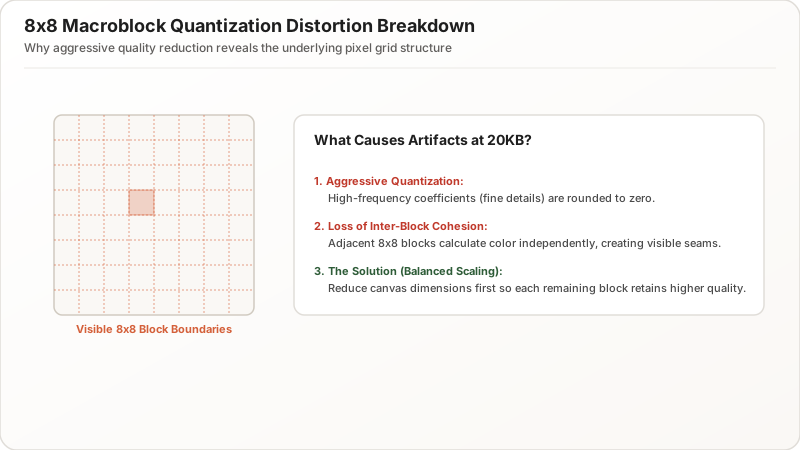
1. Blocky 8×8 Macroblock Artifacts in Low-Bitrate JPEG Files
JPEG divides every image into 8×8 pixel grid blocks before applying Discrete Cosine Transform (DCT). At severe compression levels, the boundaries between adjacent blocks become visible as faint squares across flat background areas and skies.
2. Ringing Halos and Blurry Edges Around High-Contrast Subjects
When high-contrast borders (such as dark hair against a white background or dark text) are over-compressed, the algorithm creates ringing artifacts—faint ripples and ghosting halos that make the subject’s edges appear blurry and poorly defined.
3. Smudged Text, Fuzzy Watermarks, and Lost Hair/Skin Detail
Fine details like document text, official seals, and hair strands suffer disproportionately because they consist of rapid pixel-to-pixel transitions that compression filters aggressively smooth out.
The Connection Between Pixel Dimensions and Perceived Visual Sharpness
How Pixel Density per Kilobyte Dictates Perceived Image Clarity
A smaller canvas at the same 20KB budget looks significantly sharper than a large canvas. Fewer total pixels mean a higher byte budget per pixel, allowing the codec to preserve richer texture and cleaner edges.
| Canvas Dimensions | Total Pixel Count | Byte Budget per Pixel | Visual Clarity at 20KB |
|---|---|---|---|
| 2000 × 2000 px | 4,000,000 px | 0.005 bytes/px | Severe Blurring & Blocking |
| 1000 × 1000 px | 1,000,000 px | 0.02 bytes/px | Moderate Softness |
| 600 × 600 px | 360,000 px | 0.055 bytes/px | Sharp & Clean (Ideal) |
| 350 × 450 px | 157,500 px | 0.127 bytes/px | Ultra-Sharp (Passport standard) |
Why Downscaling Canvas Dimensions Produces Sharper Results Than Low Quality Sliders
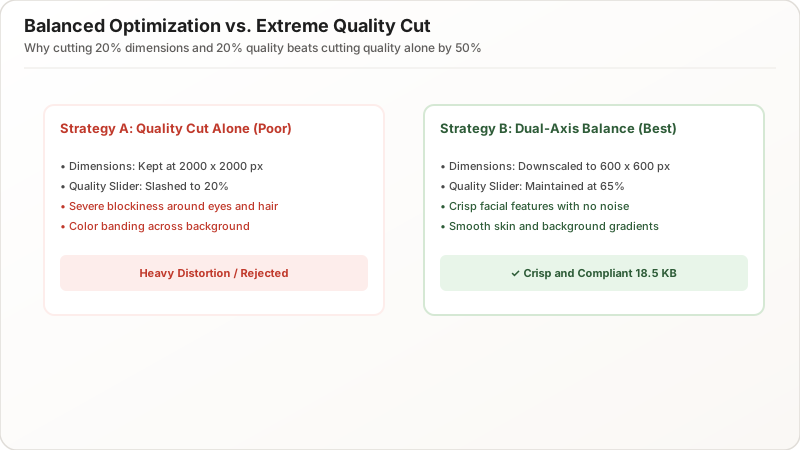
Slashing the JPEG quality slider down to 20% on a 2000px image causes extreme block distortion. In contrast, downscaling the canvas to 600×600px allows you to keep quality high (55–65%), resulting in a dramatically sharper, artifact-free image.
How Image Format Selection Directly Impacts 20KB Clarity
Switching to WebP for Cleaner Gradients and Superior Bitrate Allocation
If your target application portal permits WebP, switching formats produces an immediate visual improvement:
- WebP uses intra-frame predictive coding with built-in deblocking filters.
- Gradients and skin tones stay smooth with zero 8×8 block artifacts.
- WebP delivers 25–35% better clarity than JPEG at the identical 20KB file size.
How to Balance Pixel Dimensions and Compression Quality for Crisp 20KB Photos
The Dual-Axis Strategy: Moderate Dimension Downscaling + Moderate Quality Compression
The golden rule of 20KB optimization is the Dual-Axis Balance:
- Reduce Canvas Dimensions by ~30–50% (e.g., scale a 3000px photo down to 600–800px).
- Apply Moderate Quality Compression (50–65%) rather than extreme quality cuts.
Spreading the compromise across both axes prevents severe artifacts while keeping the file comfortably under the 20KB ceiling.
Preventing Multi-Pass Generational Quality Loss on Re-Compressed Images
Never re-compress an already compressed low-quality JPEG. Re-saving introduces cascading generational artifacts. Always start with the original uncompressed master image when generating your final 20KB export.
Actionable Techniques to Maximize Clarity at a 20KB File Size Limit
Cropping Out Background Clutter to Free Up Kilobyte Budget for Key Subjects
Busy backgrounds (curtains, trees, textured wallpaper) waste valuable kilobyte budgets. Crop tightly around the subject against a solid plain background to allocate maximum data to facial clarity.
Applying Subtle Unsharp Masking and Starting with High-Resolution Originals
- Downscale the image to your target dimensions (e.g., 600×600px).
- Apply a light sharpening filter (Unsharp Mask) to enhance high-contrast edges.
- Export to JPEG at 55–60% quality or WebP at 65% quality.
Summary & Actionable Checklist: Fixing Blurry 20KB Images
To achieve crisp, artifact-free 20KB photos:
- Always downscale dimensions first (to 400–600px) instead of slashing quality to zero.
- Keep JPEG quality at 50–65% for clean edge preservation.
- Use WebP where supported for artifact-free gradients.
- Crop out busy backgrounds to reserve bytes for facial features.
- Verify final file size sits safely at 18KB–19KB before submitting.